Now this is a topic you can easily find answers online. So why do we bother mention it? Well, we believe there are a few more things that must be said.
If you read the posts around the subject, you will see that the main difference of a sub from a function is that "functions return things and subs don't". This is in fact true, but it may not even be the principal difference.
In our opinion, the core difference between a function and a sub is that a sub can be executed alone while functions need to be called from other functions or subs.
This means that if you want to execute, for example, a program by pressing a button (assigning a macro to a shape, for example), the code must be inside a sub and not a function (the sub must also be declared as public). If you have a function without parameters and try to execute it (clicking the Run button or pressing F5) the code will not run (it will actually ask you for a sub to run), but a sub will run normally (if a sub has parameters, it can not be executed like that).
On the other hand, functions, when declared as public in a module, can be called in cells like any other Excel default formula (like "average" or "vlookup"). This means that if you have a public function named, say, "multiply3", declared in a module that returns a number multiplied by 3, you can call it, for example, by typing "=multiply3(A1)" in a cell.
This would pass the A1 cell as a parameter and execute the function, returning the value multiplied by 3 to the cell. This can not be done with subs. This is very useful when we have a big formulas combinations in a cell that has become too hard to understand and we can write a function that does exactly the same as the formulas combination, give it a nice name and use it in the cell instead. This is definitely a best practice and it avoids those unreadable formulas across the worksheets.
This would make us wonder then: what about when I have a problem to which the solution returns nothing and that will be called by another sub? This problem can be solved by both functions or subs. In that case, the programmer is free to choose from them, but if you want our opinion, in that case, we would use functions if the solution required parameters and subs otherwise. The reason for that is that subs with parameters have two syntax for being callled (with or without parenthesis around its parameters) and mixing those two syntax on a code is a little annoying - this is REALLY the only reason.
Bottom line: make sure you really understand the differences between functions and subs before coding. If you are comfortable with the concepts, you will be able to think in more solutions for individual problems such as big formulas combinations in a cell or calling programs from a button.
domingo, 18 de outubro de 2015

Why you should use arrays a lot
Although we will talk a lot about VBA and programming, this blog, as the name indicates, is about Excel - of course we intend to publish articles about VBA in other platforms such as Outlook (we have a great code for Outlook that you MUST see!) - and that what this post is about (we will have posts talking exclusively about Excel - with no VBA involved - but this is not the case yet).
Let's suppose that, in the worksheet named "Sheet1", you have the ranges A1 to E100000 filled with random numbers (this means you would have 500,000 cells filled with numbers).
Now lets suppose you would like to sum all the values and print the result in a message box. The code below would accomplish that.
option explicit
public sub MAIN_Sum_And_Message()
dim myRange as Object
dim i, j, m, n as Long
dim value as Double
value =0
set myRange = thisworkbook.Worksheets("Sheet1").Range("A1:E100000")
m = myRange.Rows.Count
n = myRange.Columns.Count
for i = 1 to m
for j = 1 to n
value = value + cDbl(myRange(i,j).value2)
next j
next i
msgbox cStr(value)
exit sub
end sub
This code, although it uses very good best practices like using the range full address and converting the values to double before adding them, would be very slow. The reason for that is because we are accessing the cells, one by one, to get their values - this means that for each cell value, we are going after the range object and reading its value.
Now let's try another approach.
option explicit
public sub MAIN_Sum_And_Message2()
dim myArray as Variant
dim i, j, m, n as Long
dim value as Double
value = 0
myArray = Thisworkbook.Worksheets("Sheet1").Range("A1:E100000").Value
m = ubound(myArray, 1)
n = ubound(myArray, 2)
for i = 1 to m
for j = 1 to n
value = value + cDbl(myArray(i,j))
next j
next i
msgbox cStr(value)
exit sub
end sub
The code above would be ridiculously faster than the previous one. The reason for that is that the ".Value" property of the range object is the most efficient way to read data from a range and, once the data is read and put in an array, the data is loaded in the computer memory and it becomes available in the fastest way possible.
Now this may all sound too extreme. Why would we bother with a few seconds more of execution? Well, this is one of the things that makes all the difference when we have operations in large sets of data. It may be the difference between a program be feasible to be executed instead of taking as long as hours to be executed.
So the bottom line here is to load the range values to arrays everytime you have more than a few lines to work on. This will spare you execution time and even make your code more elegant. Another reason for that is because when we introduce the ARRAY_MODULE (which simplifies the use of arrays), you will see that most of the functions receive arrays as parameters, so you better get used with arrays - we will use them all the time.
One more thing: if you think this is the only thing you can do to make your code run faster, your are wrong. We'll talk about performance best practices in another post and introduce the PERFORMANCE_MODULE module, that abstracts all the performance improvement best practices in a single function.
Let's suppose that, in the worksheet named "Sheet1", you have the ranges A1 to E100000 filled with random numbers (this means you would have 500,000 cells filled with numbers).
Now lets suppose you would like to sum all the values and print the result in a message box. The code below would accomplish that.
option explicit
public sub MAIN_Sum_And_Message()
dim myRange as Object
dim i, j, m, n as Long
dim value as Double
value =0
set myRange = thisworkbook.Worksheets("Sheet1").Range("A1:E100000")
m = myRange.Rows.Count
n = myRange.Columns.Count
for i = 1 to m
for j = 1 to n
value = value + cDbl(myRange(i,j).value2)
next j
next i
msgbox cStr(value)
exit sub
end sub
This code, although it uses very good best practices like using the range full address and converting the values to double before adding them, would be very slow. The reason for that is because we are accessing the cells, one by one, to get their values - this means that for each cell value, we are going after the range object and reading its value.
Now let's try another approach.
option explicit
public sub MAIN_Sum_And_Message2()
dim myArray as Variant
dim i, j, m, n as Long
dim value as Double
value = 0
myArray = Thisworkbook.Worksheets("Sheet1").Range("A1:E100000").Value
m = ubound(myArray, 1)
n = ubound(myArray, 2)
for i = 1 to m
for j = 1 to n
value = value + cDbl(myArray(i,j))
next j
next i
msgbox cStr(value)
exit sub
end sub
The code above would be ridiculously faster than the previous one. The reason for that is that the ".Value" property of the range object is the most efficient way to read data from a range and, once the data is read and put in an array, the data is loaded in the computer memory and it becomes available in the fastest way possible.
Now this may all sound too extreme. Why would we bother with a few seconds more of execution? Well, this is one of the things that makes all the difference when we have operations in large sets of data. It may be the difference between a program be feasible to be executed instead of taking as long as hours to be executed.
So the bottom line here is to load the range values to arrays everytime you have more than a few lines to work on. This will spare you execution time and even make your code more elegant. Another reason for that is because when we introduce the ARRAY_MODULE (which simplifies the use of arrays), you will see that most of the functions receive arrays as parameters, so you better get used with arrays - we will use them all the time.
One more thing: if you think this is the only thing you can do to make your code run faster, your are wrong. We'll talk about performance best practices in another post and introduce the PERFORMANCE_MODULE module, that abstracts all the performance improvement best practices in a single function.
Explaining VBA Arrays (and its issues)
First of all, we'd like to make clear that this is not a blog to learn Excel and VBA basics. Our purpose is to give more tools to make Excel and VBA simple and easy.
We are saying this because now we will talk about a basic concept of the VBA language, the Array, but the reason for that is to explain the need of a whole module, the ARRAY_MODULE, to deal with arrays instead of simply using them without any treatment.
Array definition: a VBA data type which contains a group of variables of the same data type, which can be addressed by indexes.
Here is an example of an array declaration:
Dim myArray(2 to 12) as string
This line creates a uni-dimensional array with 10 strings (index goes from 2 to 12). So the following lines of code would work:
myArray(2) = "john"
myArray(12) = "peter"
myArray(6) = "0"
On the other hand, the following lines of code would NOT work:
myArray(1) = "mary"
myArray(13) = "yan"
The reason why this would not work is because the index is smaller than the lower bound (in the first line) and greater than the upper bound (in the second line).
This happened because we defined the upper bound and the lower bound when we declared the array. The "(2 to 12)" meant that. Another way to declare this array would be like this:
Dim myArray(11) as string
This would give us an array also with 12 strings, but with the index going from 0 to 11 (0 is the default lower bound - this means VBA uses it when it is not explicitly declared by the programmer).
Once you have an array, you can check its boundaries using the Ubound and the Lbound functions, which return the upper bound and the lower bound of an arrray dimension respectively. The code below would print 0 and 11 to the immediate window:
debug.print Lbound(myArray, 1)
debug.print Ubound(myArray, 1)
Notice the "1" parameter in the ubound and the lbound functions. This is the dimension of the array we are asking for the boundaries. Since we are using a 1-dimension array, we can only ask for the boundaries of dimension number 1. This means that the following line of code would give us an error:
debug.print lbound(myArray, 2)
This causes an error because we are trying to access the second dimension of a 1 dimension array. To declare a 2 dimensions array, we would have to do something like this:
Dim myArray2(0 to 99, 0 to 9) as string
This would give as an array with 100 rows and 10 columns. A 3 dimensions array could be defined as such:
Dim myArray3 (0 to 9, 0 to 9, 0 to 9) as String
Or, equivalently,
Dim myArray3(9,9,9) as String
This would give us a 10x10x10 = 1000 elements array. (0 to 9 accounts for 10 elements, 10 for each dimension of the 3 gives us 10x10x10 = 1000 elements)
(Please notice that we are using string arrays, but any other data type could be used.)
The following code could be used:
myArray3(5,5,5) = "test"
myArray3(0,0,0) = "something"
So what is the big deal with that?
Let's suppose we used a function that returned an array and we attributed its return to an array named, say, "misteryArray' , like in the line below:
and we don't know how many dimensions it has (the misteryArray would had to be declared as a variant - there are many blogs that explain what a variant data type is, so I don't think it is necessary to explain it here). If we tried, say
msgbox ubound(misteryArray, 2)
and the array is a 1 dimension array, we would get an error message (an exception).
A person who has programmed in VBA knows this is a recurrent and annoying issue because it is very common to get arrays as outputs of functions so we don't really know how many dimension they have. So when we try to get the boundaries of the array (and, consequently, its size), we can ask for the boundary of a dimension that does not exist and get an error - and this is terrible.
Another major issue is the lower boundary. By default, the lower boundary of an array is zero, but this is not always the case. If we, for example, get the values of a range and put them on an array using the "value" method, like in the code line below, the lower boundary is, by default, 1.
misteryArray= Range("A1:C10").value
debug.print lbound(misteryArray, 1)
The code above would print "1" to the immediate window. This means that our array would have 10 rows, indexed from 1 to 10 and 3 columns indexed from 1 to 3.
The problem with that is that we are never really sure whether a N elements array dimension is indexed from 1 to N or from 0 to N-1 or from k to N+k-1.
Those issues are some of the things that makes VBA programming more difficult than most of the other languages.
To address those issues, we have created the ARRAY_MODULE, which will standardize all the arrays as 2 dimension arrays with each dimension being indexed from 0 to N-1. So every array will become a N x M matrix that can have its boundaries asked with no risk of getting an error.
We have chosen 2 dimensions as default because the Excel cell ranges are organized as 2 dimensions matrices - so this will give us a straightforward mapping from ranges to arrays and from arrays to ranges.
The reason why we chose zero as the lower boundary (instead of 1) is because most of the other programming languages work this way (this will create some issues when dealing with ranges though - ranges are indexed from 1 to N).
We will introduce the ARRAY_MODULE in another post. It is a very interesting module (and with a lot of room for improvement), with many useful functions that clear the road for other powerful modules.
sábado, 17 de outubro de 2015
Sending an Outlook E-mail From Excel Using VBA
There are many posts around the web that explain how to send an e-mail from Excel using VBA. All of them use the same approach, which is to give a sub code where the user should edit some parameters and paste the code in his or her code. Our approach is a little different.
In our approach, the programmer will be able to use a single line of code of a function whose parameters are the obvious parameters of sending an e-mail: recipients, subject, message, cc, attachment file path and if you wish to send it automatically or wants to see the send e-mail screen.
The only line of code the programmer will be required to add to its code is the one below (please notice that this is not a full code of an application, but just a line of code to be added to a function or a sub):
Call EMAIL_MODULE.Send_Email(recipient, subject, message, cc, attachment, False)
The recipient, subject, message, cc and attachment parameters are strings variables with the desired information and the "False" means the program should not display the send e-mail screen (it should send it automatically - if True, a pop-up will appear).
But how can we achieve such high degree of simplicity (abstraction) to send an e-mail using VBA? For this line of code to work, all the programmer has to do is to import 3 modules: LOG_MODULE, EMAIL_MODULE, EMAIL_CLASS. The code of each module is published in this very blog and the explanation of how to import them are also in a post. So instead of learning the details of how to send an e-mail with VBA, simply import the modules to your project and add the line of code above to your function or sub (with your parameters) and an e-mail is certain to be sent (unless, fo course, you don't have Outlook running in your machine).
The important thing to notice is that once the LOG_MODULE, the EMAIL_CLASS and the EMAIL_MODULE modules are imported, this function (in the code line above) will work in any module of the user's VBA project. Not only that, but the function "Send_Email" can even be called as a regular excel function within the worksheets! This means that if you select a cell in a worksheet and type "=Send_Email(A1, A2, A3)" and put the recipients e-mail address, the subject and the message in A1, A2 and A3 cells respectively, the e-mail will be sent too (the outlook application must be running).
The details of why this works will be explained further, but the reason why this way of sending is, we believe, better than the other ways of sending the e-mail is exactly that: you don't have to learn the details - so it is simple and straightforward.
-----------------------------------------------------------------------------
DOWNLOAD :
File Name: SEND_EMAIL_v01.xlsm
Link for Download: https://www.dropbox.com/s/tkchcm2c0qeptk1/SEND_EMAIL_v01.xlsm?raw=1
In our approach, the programmer will be able to use a single line of code of a function whose parameters are the obvious parameters of sending an e-mail: recipients, subject, message, cc, attachment file path and if you wish to send it automatically or wants to see the send e-mail screen.
The only line of code the programmer will be required to add to its code is the one below (please notice that this is not a full code of an application, but just a line of code to be added to a function or a sub):
Call EMAIL_MODULE.Send_Email(recipient, subject, message, cc, attachment, False)
The recipient, subject, message, cc and attachment parameters are strings variables with the desired information and the "False" means the program should not display the send e-mail screen (it should send it automatically - if True, a pop-up will appear).
But how can we achieve such high degree of simplicity (abstraction) to send an e-mail using VBA? For this line of code to work, all the programmer has to do is to import 3 modules: LOG_MODULE, EMAIL_MODULE, EMAIL_CLASS. The code of each module is published in this very blog and the explanation of how to import them are also in a post. So instead of learning the details of how to send an e-mail with VBA, simply import the modules to your project and add the line of code above to your function or sub (with your parameters) and an e-mail is certain to be sent (unless, fo course, you don't have Outlook running in your machine).
The important thing to notice is that once the LOG_MODULE, the EMAIL_CLASS and the EMAIL_MODULE modules are imported, this function (in the code line above) will work in any module of the user's VBA project. Not only that, but the function "Send_Email" can even be called as a regular excel function within the worksheets! This means that if you select a cell in a worksheet and type "=Send_Email(A1, A2, A3)" and put the recipients e-mail address, the subject and the message in A1, A2 and A3 cells respectively, the e-mail will be sent too (the outlook application must be running).
The details of why this works will be explained further, but the reason why this way of sending is, we believe, better than the other ways of sending the e-mail is exactly that: you don't have to learn the details - so it is simple and straightforward.
-----------------------------------------------------------------------------
DOWNLOAD :
File Name: SEND_EMAIL_v01.xlsm
Link for Download: https://www.dropbox.com/s/tkchcm2c0qeptk1/SEND_EMAIL_v01.xlsm?raw=1
Explaining VBA Modules
The main difference of this blog from the others, in a more technical explanation, is how we deal with vba modules. Instead of publishing lines of code of functions or macros, that solve individual problems, we publish full module lines of code, so one can import the module and use all the routines and functions available on it.
This is the same approach used in the other languages. All of them use this "library" model. Even Excel uses it too. Let me explain.
All the API's (application programming interfaces) a user can write in a vba program (this is, the name of the functions, variable types etc.) are defined in the VBA references. Those references are found accessing the VBA Editor, clicking in 'Tools" then in "References" (Image 01)

Image 01: VBA References
The references in the image that are checked are, in a simplistic way, files with the definition of the codes the user can type into the editor. If the user wants to, say, use a ADODB connection function to connect to a SQL Server, he or she must check one of the "Microsoft Active X Data Objects" libraries available to add this reference so the APIs for this kind of connection are available - otherwise the compiler will not find the functions the user coded, and a error message will be displayed (Image 02).
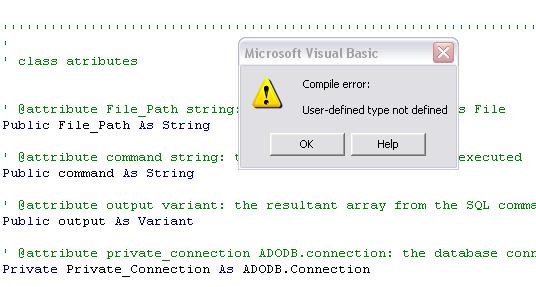
Image 02: A reference is missing
This is how VBA abstracts the programming for the user: it makes references available for the programmer so he or she can add to solve specific problems such as dealing with Outlook objects or Word objects.
By default - as Image 01 shows - not all the references are checked. This means that for some programs, the user must add the references before coding - an example is when dealing with Word objects, which require the "Microsoft Word" reference checked, which is not checked by default.
So those references are all the libraries the VBA Editor makes available for the programmer. So our idea is to give the programmer more references - more APIs -, but, instead of really using references, which require a special compiler and some complex work to be created, we use modules, that can be added almost as easily as references.
So let's start explainig what are modules. Modules are TEXT files (very important to know that) that contain regular VBA code but that can be imported from and exported to Microsoft applications (such as Excel).
For the sake of simplicity, for now we will assume that there are only 2 types of modules: CLASS MODULES and REGULAR MODULES (or simply MODULES). See image 03 below.

Image 03: modules and class modules
The only 2 real differences, from the user's perspective, of this 2 kinds of modules are the text file layout (presence of the header) and the file extension. The programming differences will be discussed in another post.
When we export a regular module (we'll teach how to do that in a minute), the file exported has the ".BAS" extension and, when you open this file in a text editor, you will find the vba code but with a first line header similar to this:
Attribute VB_Name = "THIS_IS_AN_EXAMPLE_MODULE"
On the other hand, when you export a CLASS MODULE, the file has the extension ".CLS" and a text header like this:
VERSION 1.0 CLASS
BEGIN
MultiUse = -1 'True
END
Attribute VB_Name = "ACCESS_CLASS"
Attribute VB_GlobalNameSpace = False
Attribute VB_Creatable = False
Attribute VB_PredeclaredId = False
Attribute VB_Exposed = False
As you can notice, these headers are not in italic because they ARE NOT VBA CODE. This information is only necessary to import and export modules using the import file/export file feature of the VBA Editor and they only appear in the files themselves, not in the text of the code after they are imported to the VBA editor.
IMPORTING/EXPORTING MODULES
There are 2 ways to import a module: manually or using the Import File feature.
Importing Manually: To import a module named, say, TEST_MODULE, manually, the user must create a new empty module (Insert - Module), change the module name to "TEST_MODULE", open its text editor and paste the code of it WITHOUT the "Attribute VB_Name" header (in case you are importing it from a .bas file or without the ".cls" header file (mentioned above) in case it is a ".cls" file. This is: paste only the VBA code, not those flags.
Importing using Import File: To import using the import file feature the ".bas" or ".cls", the user must click File - Import File and select the ".cls" or ".bas" file he or she wish to import which has the module code and the header - which will not be imported to the VBA Editor, since it is not VBA code.
To export manually, the user should copy the module code and save it on a text file.
To export using the Export File feature, the user should select the module to be exported by clicking on it, then File - Export File and saving it as a ".cls' or ".bas" file in case it is a class module or a regular module respectively.
Now that you know how to import and to export a module, let's make an example.
Open your excel 2013 and go to the VBA Editor. Create a new regular module (Insert - Module) and name it TEST_MODULE. Open its text editor and paste the code below.
Option Explicit
' This is an example routine
Public Function Module_Test()
MsgBox "I am a module test", vbInformation, "Module Test"
Exit Function
End Function
Now let's export this module by clicking on the module's name, then File - Export File and saving it with the name TEST_MODULE.bas.
Close the workbook without saving it.
Now open a new excel workbook. Create a new module named "MAIN" (just a best practice) and insert the code below.
' This is an example routine
Public Sub MAIN_Test()
Call TEST_MODULE.Module_Test
Exit Sub
End Sub
Run it (Run - Run Sub/User Form).
An error message should appear with the message "Variable not defined". This means that the compiler didn't fnd the TEST_MODULE module neither the Module_Test function. So let's import them.
Click File - Import File and select the TEST_MODULE.bas file. Click Open. This imports the TEST_MODULE module (which should appear in the list of modules in the Project Explorer).
Now run the MAIN_Test sub in the MAIN module again. A message box with the message "I am a module test" will be displayed. This means that the routine in the MAIN module was able to find the Test function in the TEST_MODULE module. You have just used a module as it should be used. Congratulations!
Explaining the LOG_MODULE - Reading 01
This is the first module we are publishing, and we haven't still explained this "module" approach - we'll get on that. So although we will explain, soon, how to import and export a VBA module, just for this time, we will assume that the reader knows how to do it and we'll go to the most basic module we develop - the LOG_MODULE.
The LOG_MODULE is, by far, the most used log in our vba programming method. All the modules we developed use this module, so it is very important that that reader be comfortable with it.
The LOG_MODULE, although very important, is actually very simple (by the way, simplicity is the core idea of this blog). The module contains functions that abstract the log printing. So, once the user have imported the log module, he or she will be able to print application log with a single line of code - all the abstraction is made under the curtains so that logging become a straightforward and simple operation.
The reason this mode exists is in line with the idea that we treat VBA applications with the same seriousness that we would treat a, say, JAVA or C++ application. We believe applications must print log and this module help us to do that in a simple fashion.
So, before we go into the details of the LOG_MODULE, let's create a routine that uses it. To do so, follow the following steps:
1. Open a Excel 2013 workbook.
2. Access the VBA Editor (Press ALT+F11)
3. Go to the toolbar, click "Insert", then click "Module".
4. If the "Project Explorer Window is not visible, click "View" then click "Project Explorer"
5. In the Project Explorer Window, find the module you have just created (usually named "Module 1") and change its name to "MAIN" using the "Properties Window" (if it not visible, press "F4"). This step is not really necessary, but it is our 1st good practice - to name the modules.
6. Import the LOG_MODULE (you can both import the MODULE_MODULE.bas file or to create a new module, name it to "LOG_MODULE" and then to paste the "LOG_MODULE" code on the editor - the code is available in another post)
6. Open the "MAIN" module editor and paste the code below (codes are pasted in italic).
Option Explicit
''''''''''''''''''''''''''''''''''''''''''''''''''''''''''''''''''''''''''''''''''''''''''
'
' @module MAIN_MODULE: All macros and functions that are called from the worksheets should be placed in here
' @author Yan França Tosta
' @version 37
' @since 08/2015
'
''''''''''''''''''''''''''''''''''''''''''''''''''''''''''''''''''''''''''''''''''''''''''
' This is an example routine
Public Sub MAIN_Hello_World_With_Log()
LOG_MODULE.Log "Starting the MAIN_Hello_World sub"
MsgBox "Hello World", vbInformation, "Hello World"
LOG_MODULE.Log "The MAIN_Hello_World sub has finished"
LOG_MODULE.Log "main", 0
Exit Sub
End Sub
7. Click "Debug", then click "Compile VBA Project".
8. Save the workbook with a name, say, "log_module_test.xlsm" as a "macro-enabled" workbook.
9. Click "Run" then click "Run Sub/User Form" (or press F5').
A message box with the message "Hello World" should appear. Press "OK" to finish the routine.
Now open the Windows Explorer and go to the "C:\TEMP\" folder. There you will find a ".log" file named "log_module_test_[DATE].log', where [DATE] is the current date. Open this file with a text editor and you will read something like this:
2015-10-17 18:19 - Starting the MAIN_Hello_World sub
2015-10-17 18:20 - The MAIN_Hello_World sub has finished
2015-10-17 18:20 - main - EXIT SUCCESS
This is the log message. And the file you've just opened is the log file.
-------------------------------------------
DOWNLOAD:
File Name: LOG_MODULE.bas
Link for download: https://www.dropbox.com/s/etdqd76qcgeg8vb/LOG_MODULE_EXAMPLE.xlsm?raw=1
The LOG_MODULE is, by far, the most used log in our vba programming method. All the modules we developed use this module, so it is very important that that reader be comfortable with it.
The LOG_MODULE, although very important, is actually very simple (by the way, simplicity is the core idea of this blog). The module contains functions that abstract the log printing. So, once the user have imported the log module, he or she will be able to print application log with a single line of code - all the abstraction is made under the curtains so that logging become a straightforward and simple operation.
The reason this mode exists is in line with the idea that we treat VBA applications with the same seriousness that we would treat a, say, JAVA or C++ application. We believe applications must print log and this module help us to do that in a simple fashion.
So, before we go into the details of the LOG_MODULE, let's create a routine that uses it. To do so, follow the following steps:
1. Open a Excel 2013 workbook.
2. Access the VBA Editor (Press ALT+F11)
3. Go to the toolbar, click "Insert", then click "Module".
4. If the "Project Explorer Window is not visible, click "View" then click "Project Explorer"
5. In the Project Explorer Window, find the module you have just created (usually named "Module 1") and change its name to "MAIN" using the "Properties Window" (if it not visible, press "F4"). This step is not really necessary, but it is our 1st good practice - to name the modules.
6. Import the LOG_MODULE (you can both import the MODULE_MODULE.bas file or to create a new module, name it to "LOG_MODULE" and then to paste the "LOG_MODULE" code on the editor - the code is available in another post)
6. Open the "MAIN" module editor and paste the code below (codes are pasted in italic).
Option Explicit
''''''''''''''''''''''''''''''''''''''''''''''''''''''''''''''''''''''''''''''''''''''''''
'
' @module MAIN_MODULE: All macros and functions that are called from the worksheets should be placed in here
' @author Yan França Tosta
' @version 37
' @since 08/2015
'
''''''''''''''''''''''''''''''''''''''''''''''''''''''''''''''''''''''''''''''''''''''''''
' This is an example routine
Public Sub MAIN_Hello_World_With_Log()
LOG_MODULE.Log "Starting the MAIN_Hello_World sub"
MsgBox "Hello World", vbInformation, "Hello World"
LOG_MODULE.Log "The MAIN_Hello_World sub has finished"
LOG_MODULE.Log "main", 0
Exit Sub
End Sub
7. Click "Debug", then click "Compile VBA Project".
8. Save the workbook with a name, say, "log_module_test.xlsm" as a "macro-enabled" workbook.
9. Click "Run" then click "Run Sub/User Form" (or press F5').
A message box with the message "Hello World" should appear. Press "OK" to finish the routine.
Now open the Windows Explorer and go to the "C:\TEMP\" folder. There you will find a ".log" file named "log_module_test_[DATE].log', where [DATE] is the current date. Open this file with a text editor and you will read something like this:
2015-10-17 18:19 - Starting the MAIN_Hello_World sub
2015-10-17 18:20 - The MAIN_Hello_World sub has finished
2015-10-17 18:20 - main - EXIT SUCCESS
This is the log message. And the file you've just opened is the log file.
-------------------------------------------
DOWNLOAD:
File Name: LOG_MODULE.bas
Link for download: https://www.dropbox.com/s/etdqd76qcgeg8vb/LOG_MODULE_EXAMPLE.xlsm?raw=1
EMAIL_MODULE - 20151017
The e-mail module, once it is imported together with the log module (all the modules require the log module, since all the modules generate log), abstracts the complexity of sending an Oulook e-mail in one simple and straightforward function. Of course sending an e-mail in VBA is not the most complex task you will ever perform, but it is complicated enough to be simplified as it is in this module. So please download the module itself (the full code is depicted below) or download the workbook that contains it (and a lot more).
''''''''''''''''''''''''''''''''''''''''''''''''''''''''''''''''''''''''''''''''''''''''''''''''''''''''''''''''''''''''''''''''''
'DOWNLOAD
'File Name = EMAIL_MODULE.bas
'Link to donwload:
' https://www.dropbox.com/s/p5lknx9qr6mwl9a/EMAIL_MODULE.bas?raw=1
'File Name= VBA_MODULES_43.xlsm (file that has the log_module and the email_module ready to be used)
'Link to donwload:
' https://www.dropbox.com/s/pxxwgap8hl7m9xw/VBA_MODULES_43.xlsm?raw=1
'Raw Code:
'----------------------------------------------------------------------------------------------------------------------
'Option Explicit
''''''''''''''''''''''''''''''''''''''''''''''''''''''''''''''''''''''''''''''''''''''''''
'
' @module EMAIL_MODULE
' @author Yan França Tosta
' @version 43
' @since 06/2015
' @requires the LOG_MODULE
'
''''''''''''''''''''''''''''''''''''''''''''''''''''''''''''''''''''''''''''''''''''''''''
'
' @function: Send_Email as boolean
' @description: sends e-mail using outlook application
' @param ByVal Receiver As String: the recipient of the e-mail
' @param ByVal Subject As String: the subject of the e-mail
' @param Optional ByVal Message As String = vbNullString: the HTML message body of the e-mail
' @param Optional ByVal CC As String = vbNullString: the recipients in copy
' @param Optional ByVal File_Path As String = vbNullString: the attachment file path
' @param Optional ByVal Display As Boolean = False: if true, displays the send screen; sends the e-mail automatically otherwise
' @return Boolean: true if success, false otherwise
'
Public Function Send_Email(ByVal Receiver As String, _
ByVal Subject As String, _
Optional ByVal Message As String = vbNullString, _
Optional ByVal CC As String = vbNullString, _
Optional ByVal File_Path As String = vbNullString, _
Optional ByVal Display As Boolean = False) As Boolean
Dim outlookApplication As Object
Dim outlookMail As Object
Dim function_name As String
function_name = "EMAIL_MODULE.Send_Email"
LOG_MODULE.LOG_PRINT function_name
LOG_MODULE.LOG_PRINT function_name, "Sending mail with subject '" _
& Subject & "' to '" & Receiver & "'."
On Error GoTo error_1000
LOG_MODULE.LOG_PRINT function_name, "Checks whether the Outlook is open. If it is not, it tries to opens a new instance"
Set outlookApplication = GetObject(, "Outlook.Application")
If outlookApplication Is Nothing Then
Set outlookApplication = CreateObject("Outlook.Application")
End If
Set outlookMail = outlookApplication.CreateItem(0)
With outlookMail
.To = Receiver
.CC = CC
.Subject = Subject
.HTMLBody = Message
If Not File_Path = vbNullString Then
.Attachments.Add File_Path
End If
If Display Then
LOG_MODULE.LOG_PRINT function_name, "Opening Display to Send the e-mail"
.Display
Else
LOG_MODULE.LOG_PRINT function_name, "Sending the e-mail without opening the display"
.send
End If
End With
Send_Email = True
LOG_MODULE.LOG_PRINT function_name, "E-mail sent"
LOG_MODULE.LOG_PRINT function_name, 0
Exit Function
error_1000:
LOG_MODULE.LOG_PRINT function_name, Err.Description
LOG_MODULE.LOG_PRINT function_name, 1
Send_Email = False
Exit Function
End Function
'
' @function: Send_Email_Display as boolean
' @description: displays the outlook send e-mail screen
' @return Boolean: true if success, false otherwise
'
Public Function Send_Email_Display() As Boolean
Dim function_name As String
function_name = "EMAIL_MODULE.Send_Email_Display"
LOG_MODULE.LOG_PRINT function_name
On Error GoTo error_1000:
Send_Email_Display = Send_Email(vbNullString, vbNullString, vbNullString, vbNullString, vbNullString, True)
LOG_MODULE.LOG_PRINT function_name, 0
Exit Function
error_1000:
LOG_MODULE.LOG_PRINT function_name, Err.Description
LOG_MODULE.LOG_PRINT function_name, 1
MsgBox "Unable to open the e-mail display", , "ERROR"
Send_Email_Display = False
Exit Function
End Function
''''''''''''''''''''''''''''''''''''''''''''''''''''''''''''''''''''''''''''''''''''''''''''''''''''''''''''''''''''''''''''''''''
'DOWNLOAD
'File Name = EMAIL_MODULE.bas
'Link to donwload:
' https://www.dropbox.com/s/p5lknx9qr6mwl9a/EMAIL_MODULE.bas?raw=1
'File Name= VBA_MODULES_43.xlsm (file that has the log_module and the email_module ready to be used)
'Link to donwload:
' https://www.dropbox.com/s/pxxwgap8hl7m9xw/VBA_MODULES_43.xlsm?raw=1
'Raw Code:
'----------------------------------------------------------------------------------------------------------------------
'Option Explicit
''''''''''''''''''''''''''''''''''''''''''''''''''''''''''''''''''''''''''''''''''''''''''
'
' @module EMAIL_MODULE
' @author Yan França Tosta
' @version 43
' @since 06/2015
' @requires the LOG_MODULE
'
''''''''''''''''''''''''''''''''''''''''''''''''''''''''''''''''''''''''''''''''''''''''''
'
' @function: Send_Email as boolean
' @description: sends e-mail using outlook application
' @param ByVal Receiver As String: the recipient of the e-mail
' @param ByVal Subject As String: the subject of the e-mail
' @param Optional ByVal Message As String = vbNullString: the HTML message body of the e-mail
' @param Optional ByVal CC As String = vbNullString: the recipients in copy
' @param Optional ByVal File_Path As String = vbNullString: the attachment file path
' @param Optional ByVal Display As Boolean = False: if true, displays the send screen; sends the e-mail automatically otherwise
' @return Boolean: true if success, false otherwise
'
Public Function Send_Email(ByVal Receiver As String, _
ByVal Subject As String, _
Optional ByVal Message As String = vbNullString, _
Optional ByVal CC As String = vbNullString, _
Optional ByVal File_Path As String = vbNullString, _
Optional ByVal Display As Boolean = False) As Boolean
Dim outlookApplication As Object
Dim outlookMail As Object
Dim function_name As String
function_name = "EMAIL_MODULE.Send_Email"
LOG_MODULE.LOG_PRINT function_name
LOG_MODULE.LOG_PRINT function_name, "Sending mail with subject '" _
& Subject & "' to '" & Receiver & "'."
On Error GoTo error_1000
LOG_MODULE.LOG_PRINT function_name, "Checks whether the Outlook is open. If it is not, it tries to opens a new instance"
Set outlookApplication = GetObject(, "Outlook.Application")
If outlookApplication Is Nothing Then
Set outlookApplication = CreateObject("Outlook.Application")
End If
Set outlookMail = outlookApplication.CreateItem(0)
With outlookMail
.To = Receiver
.CC = CC
.Subject = Subject
.HTMLBody = Message
If Not File_Path = vbNullString Then
.Attachments.Add File_Path
End If
If Display Then
LOG_MODULE.LOG_PRINT function_name, "Opening Display to Send the e-mail"
.Display
Else
LOG_MODULE.LOG_PRINT function_name, "Sending the e-mail without opening the display"
.send
End If
End With
Send_Email = True
LOG_MODULE.LOG_PRINT function_name, "E-mail sent"
LOG_MODULE.LOG_PRINT function_name, 0
Exit Function
error_1000:
LOG_MODULE.LOG_PRINT function_name, Err.Description
LOG_MODULE.LOG_PRINT function_name, 1
Send_Email = False
Exit Function
End Function
'
' @function: Send_Email_Display as boolean
' @description: displays the outlook send e-mail screen
' @return Boolean: true if success, false otherwise
'
Public Function Send_Email_Display() As Boolean
Dim function_name As String
function_name = "EMAIL_MODULE.Send_Email_Display"
LOG_MODULE.LOG_PRINT function_name
On Error GoTo error_1000:
Send_Email_Display = Send_Email(vbNullString, vbNullString, vbNullString, vbNullString, vbNullString, True)
LOG_MODULE.LOG_PRINT function_name, 0
Exit Function
error_1000:
LOG_MODULE.LOG_PRINT function_name, Err.Description
LOG_MODULE.LOG_PRINT function_name, 1
MsgBox "Unable to open the e-mail display", , "ERROR"
Send_Email_Display = False
Exit Function
End Function
Assinar:
Postagens (Atom)